 Tech


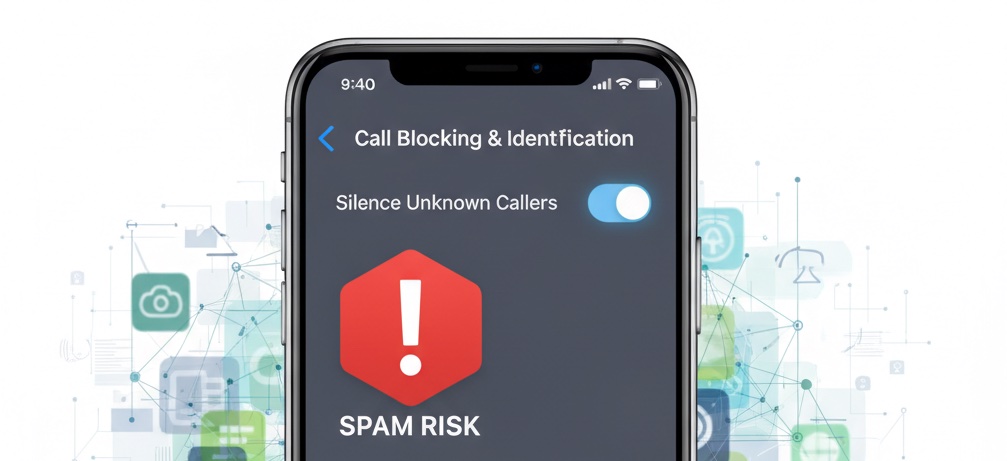
Spam and scam calls are more than an annoyance. Fake bank calls and “delivery problem” scams cost people real money. Your iPhone has several built-in tools to cut them down, from blocking a single number to screening every unknown caller automatically. Here’s how to set them up, step by step.
1. Block a specific number
- Open the Phone app and tap Recents.
- Tap the i (info) button next to the number.
- Scroll down and tap Block Caller, then Block Contact.
Blocked numbers can’t call, FaceTime or text you. Their voicemails go to a separate Blocked Messages section. Review or unblock numbers in Settings > Apps > Phone > Blocked Contacts.

2. Screen or silence unknown callers
This is the most effective setting against robocalls.
- Go to Settings > Apps > Phone. On older iOS versions, it’s Settings > Phone.
- Find Screen Unknown Callers (iOS 26) or Silence Unknown Callers (earlier versions).
- Choose an option:
- Ask Reason for Calling: your iPhone answers unknown numbers, asks the caller who they are and why they’re calling, then shows you their answer so you can decide whether to pick up.
- Silence: calls from numbers not in your contacts, recent calls or Siri Suggestions go straight to voicemail without ringing.
Tip: if you’re expecting a call from a new number, such as a courier or a doctor’s clinic, turn this off temporarily or save the number first.
3. Filter spam in the Phone app
Recent iOS versions can move suspected spam calls out of your main Recents list. In Settings > Apps > Phone, look for options to Filter Spam or Filter Unknown Callers. Then check the filtered list occasionally in case a real call lands there.
4. Use a call-blocking app
Apps such as Truecaller, Hiya or your mobile carrier’s own app keep large databases of known spam numbers.
- Install the app from the App Store and set it up.
- Go to Settings > Apps > Phone > Call Blocking & Identification.
- Switch on the app.

5. Report and block spam texts too
Scam calls often come with scam SMS. In Messages, open the message and tap Report Junk. Then go to Settings > Apps > Messages and turn on Filter Unknown Senders.
Staying safe from scam calls
- Banks, telecom companies and government departments won’t ask for your OTP, PIN or card details over the phone.
- If a caller claims to be from your bank, hang up and call the number on the back of your card.
- Don’t press keys or say “yes” to robocalls. It can confirm your number is active.
- Report scam numbers to your mobile operator and, in the UAE, to the police’s eCrime channels.
Frequently Asked Questions
How do I block spam calls on my iPhone?
Block individual numbers from Recents > i > Block Caller, turn on Screen or Silence Unknown Callers in Settings > Apps > Phone, and add a call-blocking app under Call Blocking & Identification.
What does Silence Unknown Callers do on iPhone?
It sends calls from numbers not in your contacts, recent calls or Siri Suggestions straight to voicemail without ringing.
How do I unblock a number on iPhone?
Go to Settings > Apps > Phone > Blocked Contacts, swipe left on the number and tap Unblock.