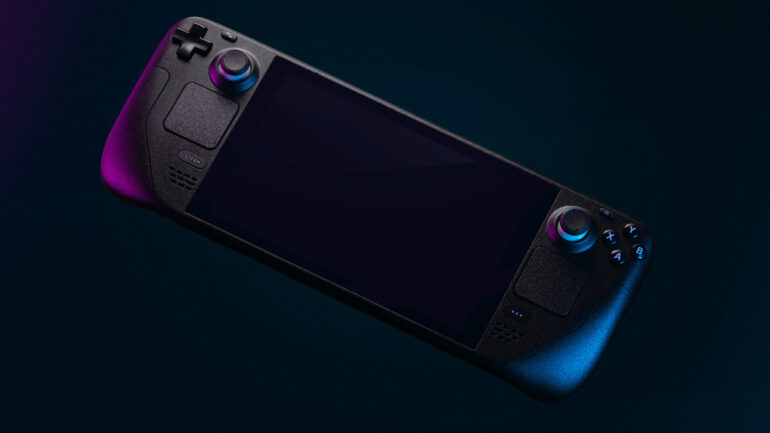

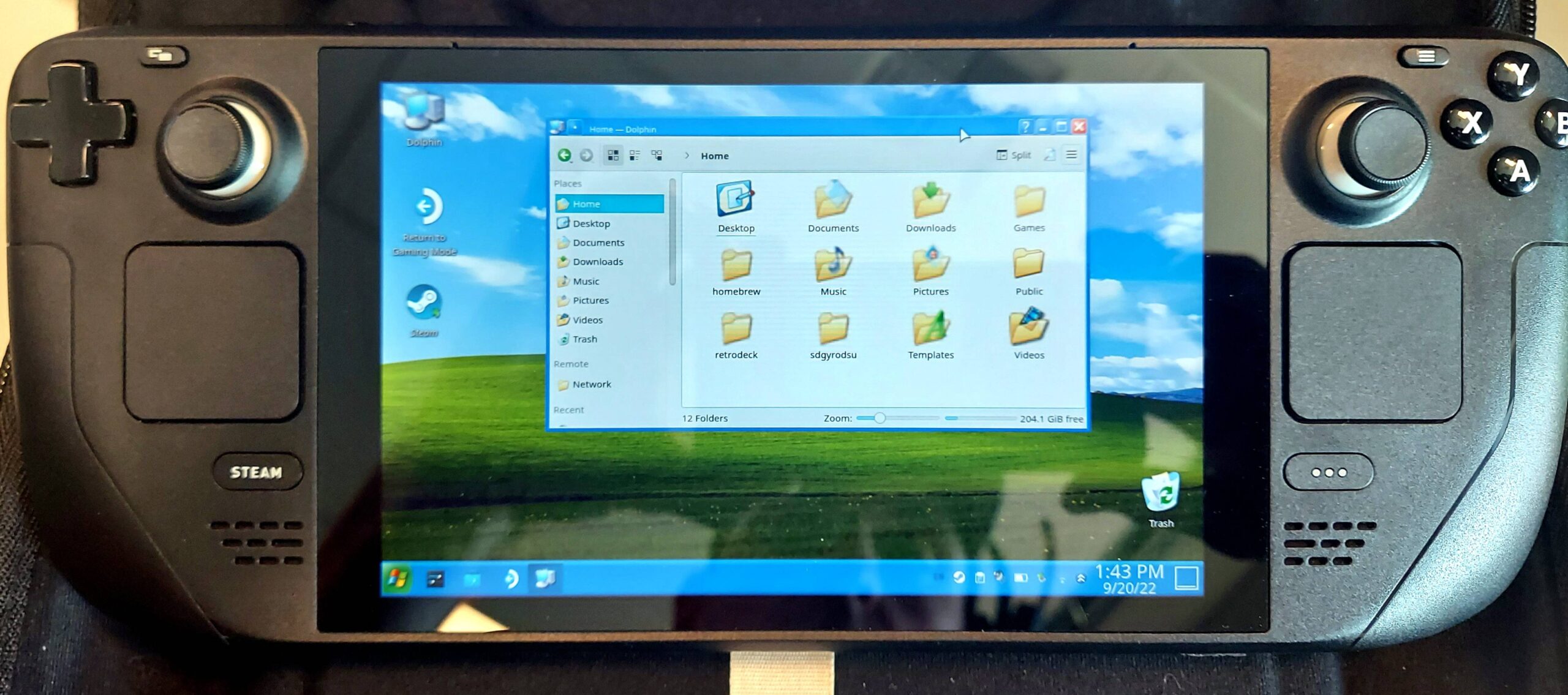
The Steam Deck has become a favorite tool for people who love to restore old software. In 2026, many users are looking for ways to run Windows XP on their handheld devices to play games that do not work well on modern versions of Windows. Because the Steam Deck uses very new hardware, it is not possible to install Windows XP as the primary operating system. Instead, you must use specialized tools to create a environment where the old software can thrive. This project allows you to experience the classic blue taskbar and the sounds of the early 2000s while sitting on your couch.
Restoring legacy tech on a modern handheld requires a balance of software knowledge and patience. You cannot simply plug in a disc and expect it to work. You need to understand how to bridge the gap between the modern Linux-based SteamOS and the aging architecture of Windows XP. This guide will help you navigate the complex world of drivers and settings so you can have a stable and fun experience with your favorite legacy programs.
How to install Windows XP on a Steam Deck?
The most reliable way to install Windows XP on your Steam Deck in 2026 is through virtualization software like 86Box or VirtualBox. Since the Steam Deck hardware does not support the old boot protocols required by Windows XP, a virtual machine is the only way to get the system running with full stability. To start, you will need to go to the Desktop Mode of your Steam Deck and open the Discover store. From there, you can download a virtualization app. Once installed, you will need an ISO file of Windows XP, which acts like a digital version of the installation CD.
After you have your software ready, you must create a new virtual machine. You should assign at least 512 megabytes of RAM and about 10 gigabytes of storage space to the system. During the setup, you will be asked to choose the type of hardware you want to mimic. It is best to choose a mid-range PC from the year 2002, as this provides the best balance of speed and compatibility for most Windows XP games. Once the settings are saved, you can start the machine and follow the standard Windows XP installation blue screens until you reach the desktop.
Which is the best Windows XP emulator for the Steam Deck?
While there are several options available, 86Box is widely considered the best choice for the Steam Deck in 2026. Unlike standard virtual machines that only try to run the software, 86Box actually emulates specific pieces of old hardware like SoundBlaster cards and Voodoo graphics processors. This is important because many games from the Windows XP era were designed to work with very specific hardware components. By emulating these parts, you can avoid many of the crashes and graphical glitches that occur when you try to run old games on a modern computer.
Another popular choice is Bottles, which uses a technology called Wine to run Windows programs directly on Linux. While Bottles is much faster and easier to set up, it does not provide the full Windows XP experience. It is great for running a single game, but it does not give you the desktop or the feeling of using an old computer. For a true restoration project, 86Box is the better tool because it lets you interact with the operating system exactly as it existed twenty years ago. It also allows you to save “snapshots” of your machine so you can revert back if you accidentally break a setting.
Where can I download the drivers for Windows XP on the Steam Deck
Finding drivers for Windows XP on a Steam Deck can be difficult because the hardware inside the Deck was made long after Windows XP was retired. If you are using an emulator like 86Box, the drivers are actually included with the emulation software. You will need to install the “Guest Additions” or the specific hardware drivers provided in the 86Box manager. These drivers tell Windows XP how to talk to the virtual hardware, which then passes the signal to your Steam Deck. This is much easier than searching the internet for old files that might contain viruses.
If you are trying to find drivers for specific older peripherals you have plugged into your Deck, you should look for the “XP-Drivers-Pack” which is a community-maintained library of legacy files. However, you must be careful when downloading these files from unofficial sites. In 2026, most of the original manufacturer websites for 20-year-old hardware have gone offline. Your best bet is to use the driver installers that come built into your emulation tool, as these have been tested specifically to work on the Steam Deck and SteamOS.
How do you play Windows XP games on the Steam Deck?
Playing games on the Steam Deck OLED requires a few extra steps to make sure the screen looks correct. Because Windows XP was made for boxy monitors with a 4:3 aspect ratio, the image may look stretched on the wide screen of the Steam Deck. To fix this, you should go into the display settings of your emulator and enable “Integer Scaling.” This will keep the pixels sharp and maintain the original shape of the game window. The OLED screen is particularly good for these old games because it can display deep blacks, which makes the low-resolution graphics look much more vibrant.
You also need to think about the controls. Windows XP expects a mouse and keyboard, but the Steam Deck uses joysticks and buttons. You can use the Steam Input settings to map your controller buttons to specific keys on a keyboard. For example, you can set the right trackpad to act as a mouse and the triggers to act as the left and right mouse buttons. This allows you to play classic strategy games or first-person shooters without needing to carry a physical mouse and keyboard with you.
Steam Deck Windows XP sound fix
One of the most common problems with running Windows XP on a modern device is that the sound can be choppy or delayed. This usually happens because the modern processor is trying to sync up with the old audio timing of Windows XP. To fix this, you should go into the audio settings of your virtual machine and change the sound card to a “SoundBlaster 16” or an “AC97” controller. These are the most compatible audio formats for the XP era. You should also ensure that the audio buffer in your emulator is set to a higher value to prevent the sound from cutting out during gameplay.
If you still hear static or popping noises, you may need to adjust the power settings in SteamOS. Sometimes the Steam Deck tries to save battery by slowing down the processor, which can cause the emulation to lag. If you set the “Manual GPU Clock” to a fixed speed in the Steam Deck quick access menu, it can provide a more consistent stream of data to the virtual sound card. This small change often removes all audio issues and makes the music in your favorite legacy games sound exactly as it did on an original PC.